Keyboard Accessibility
I was the sole product design intern responsible for keyboard accessibility for Cisco Webex Flow Designer, a call center flow builder.
With my design, Flow Designer meets WCAG 2.1 compliance, expanding market reach and ensuring a more inclusive user experience.

ROLE:
Product Designer
TIMEFRAME:
10 weeks
SKILLS:
UI/UX
Prototyping
TOOLS:
Figma Make
Coming Soon
THE CHALLENGE
Cisco’s call center flow builder is not keyboard accessible
No mouse? No service. For users relying on keyboards-only interactions, configuring a call flow isn't just clunky, it's a total dead end.
THE PROBLEM
An industry-wide blind spot
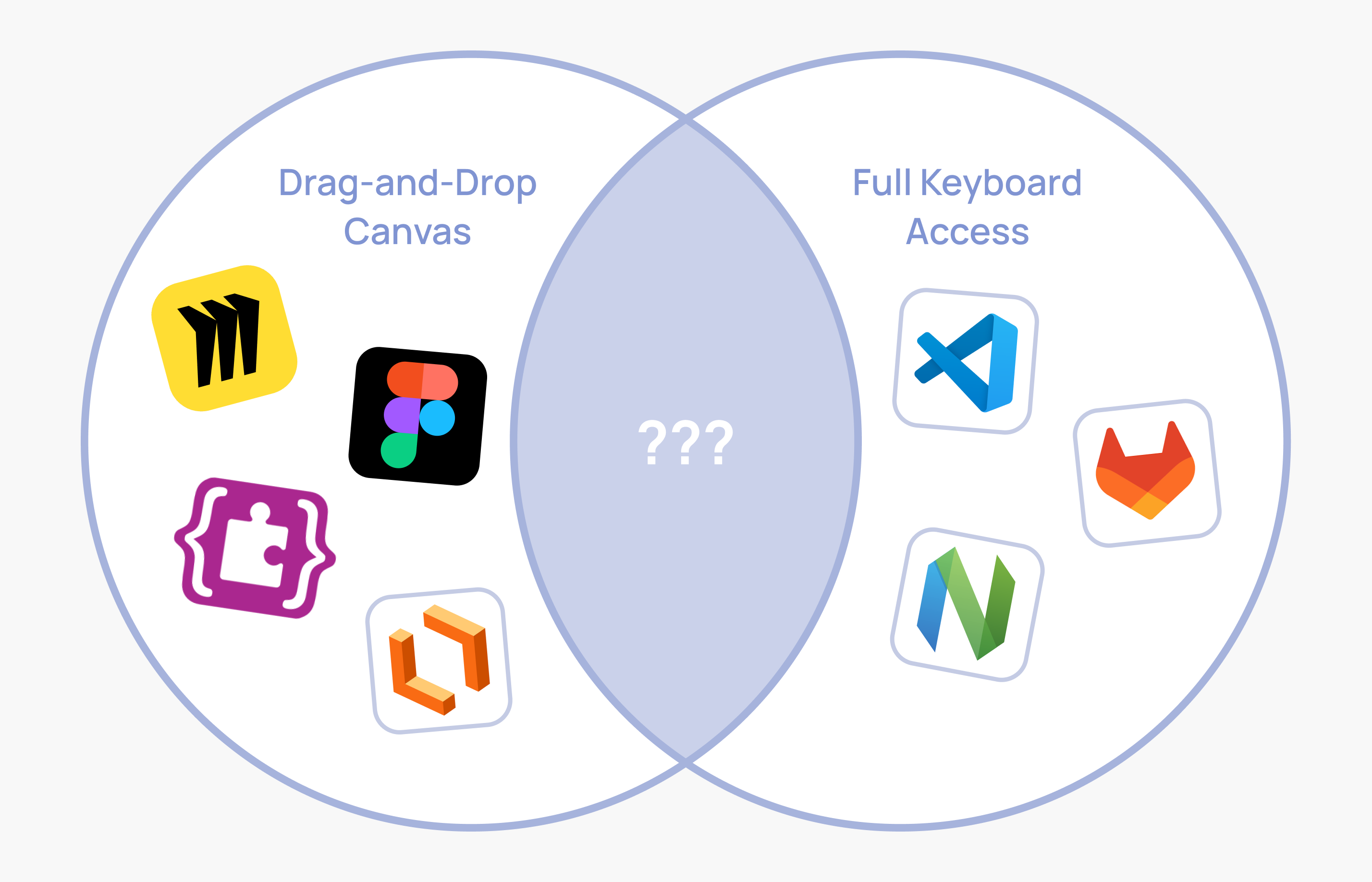
A deep dive into similar products and existing accessibility work revealed a frustrating truth: keyboard accessibility in canvas tools is a severely under-designed problem space.
Disappointing? Yes. But for a designer, it's a space brimming with opportunity.
DEFINE
Target User
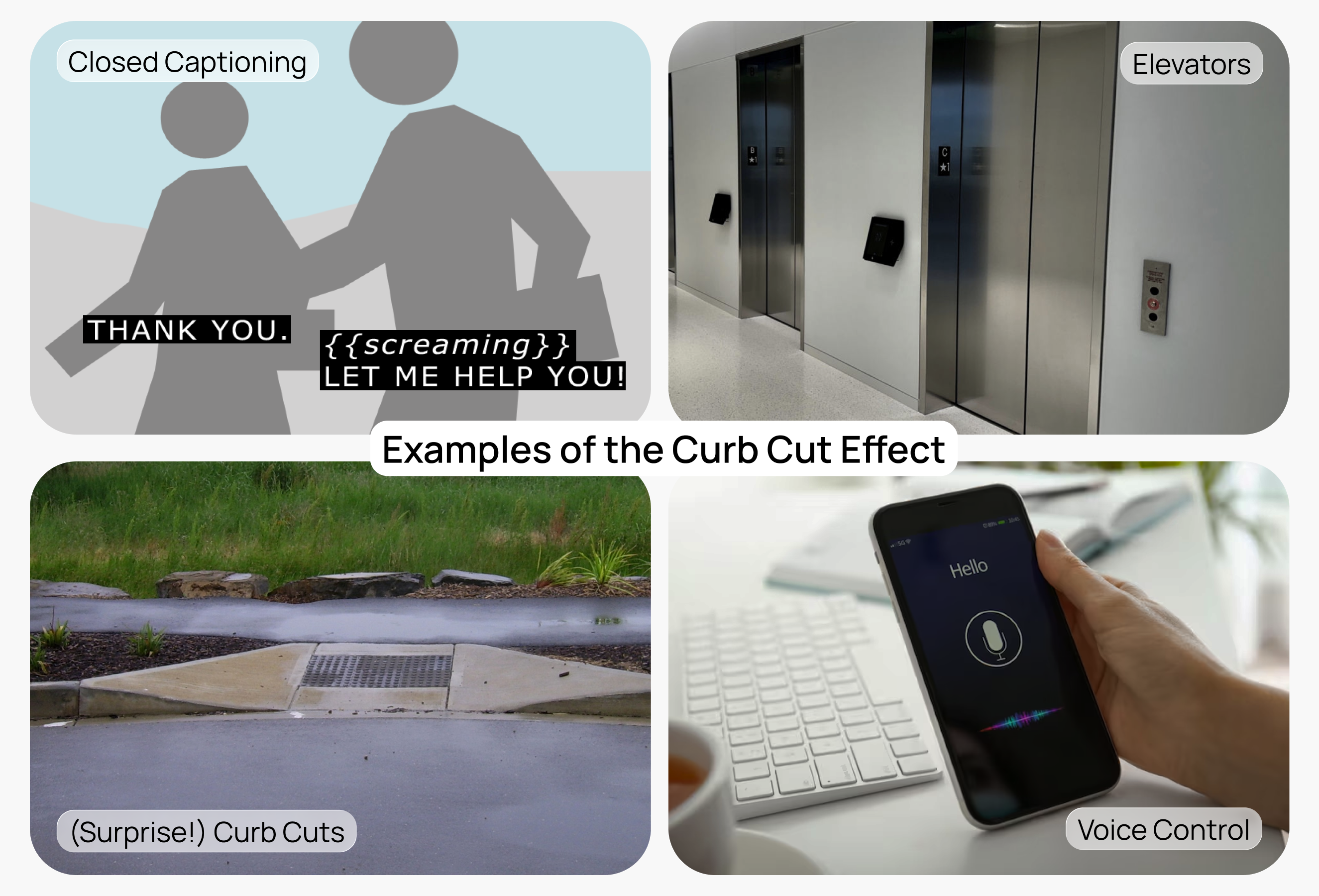
Through my research, I learned of the curb-cut effect: designs that help people with disabilities can end up benefitting everyone.
With this in mind, I chose to design for blind screen-reader and keyboard users.
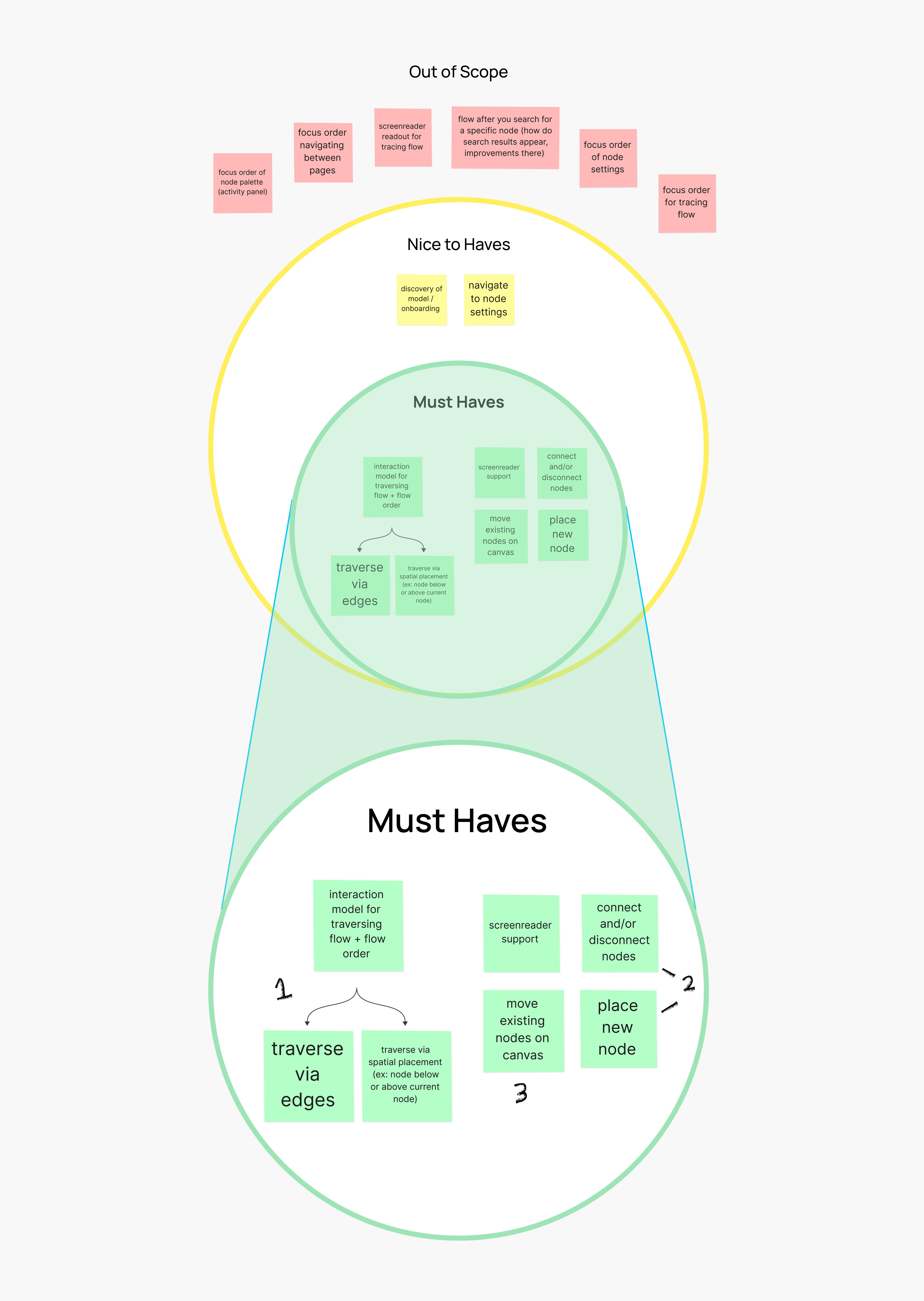
Within Flow Designer, I focused in on what interactions were top priority, landing on three main functionalities:
- Traversing a call flow
- Connecting/adding nodes
- Moving nodes
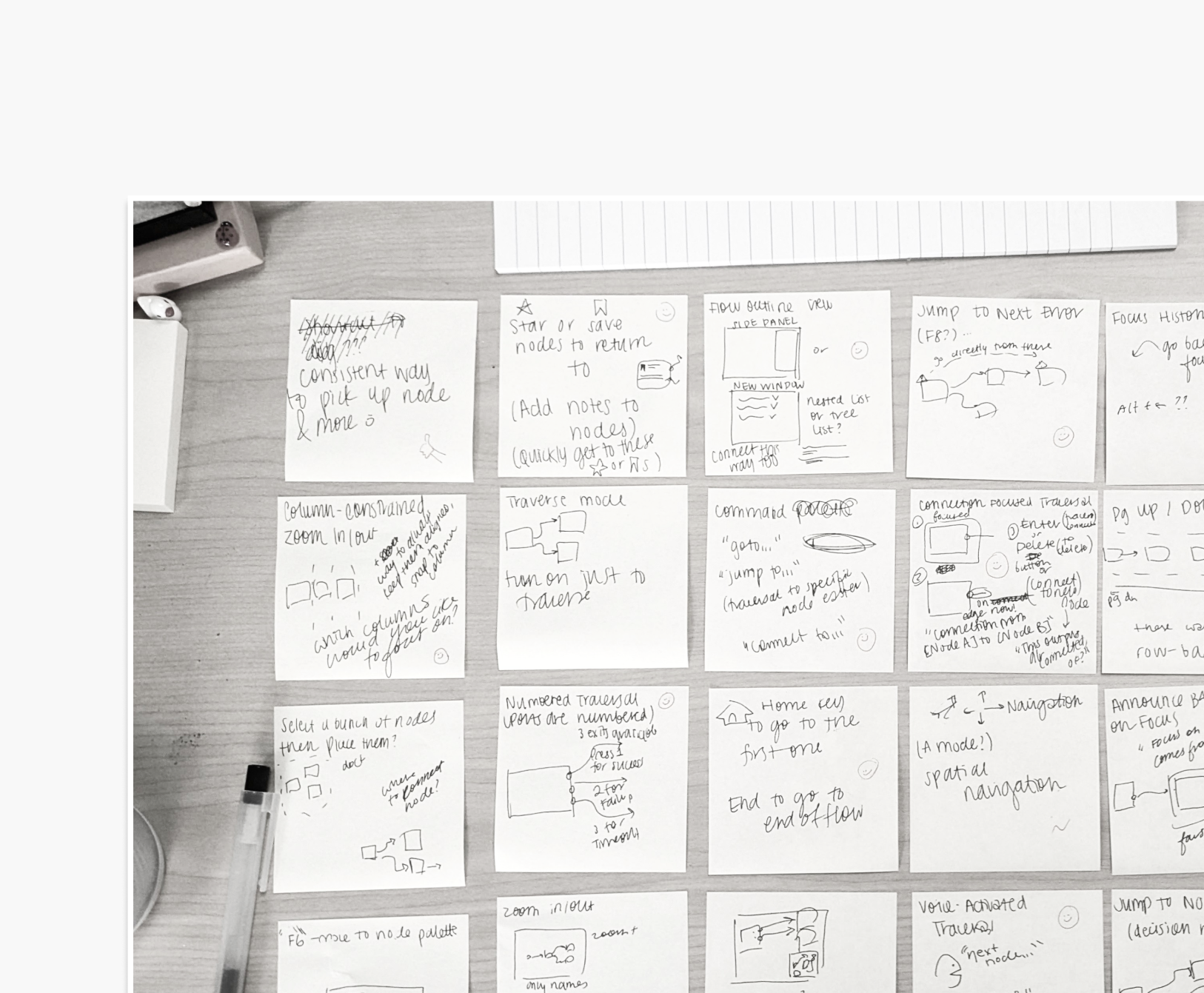
I generated various ideas within the main functionalities. Given the comprehensive nature of my design, I took several ideas and merged them together to form the final design.
DEVELOPMENT
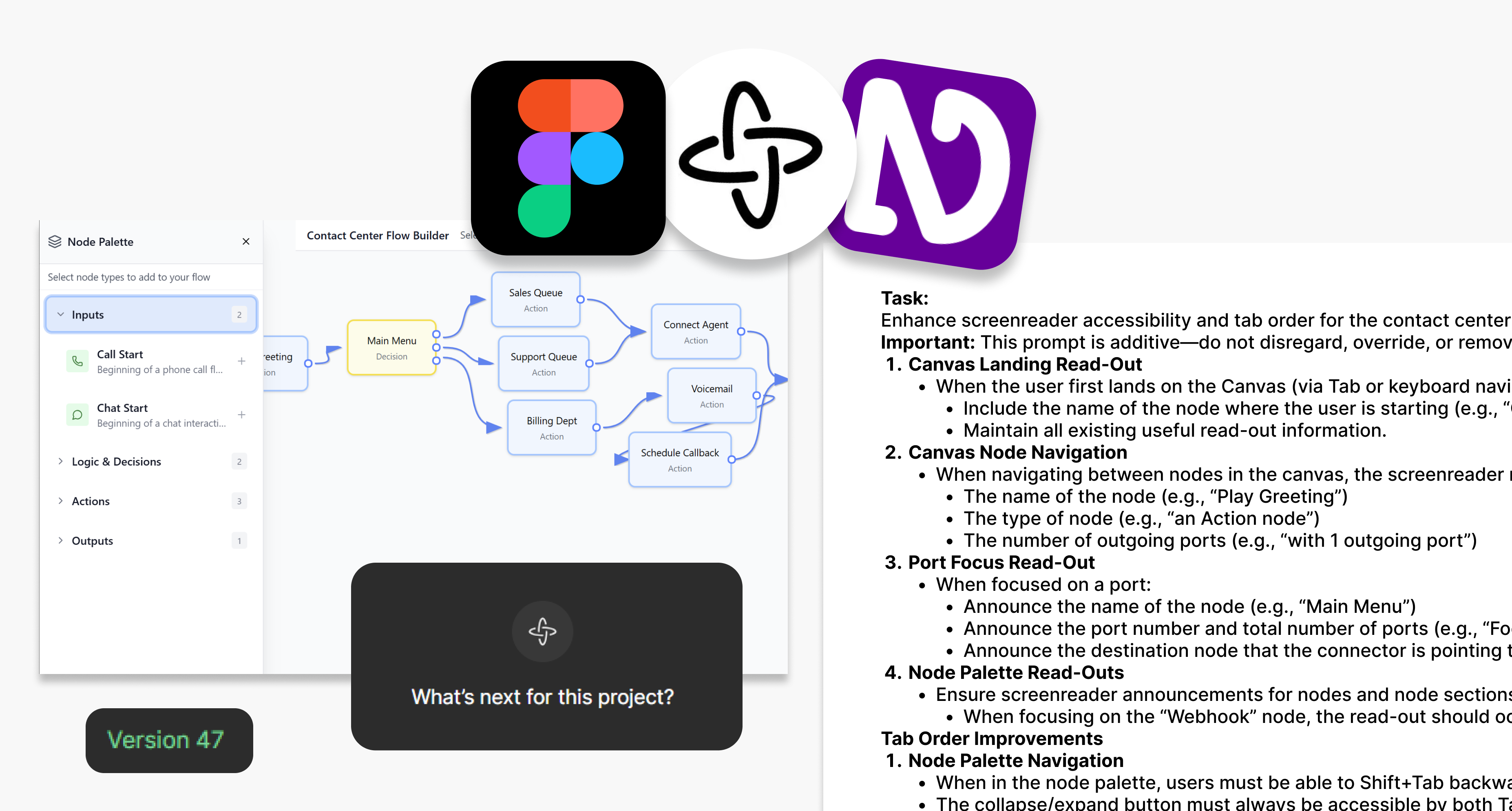
Screen-reader compatibility is a non-negotiable
I started in Figma but soon realized screen-reader compatibility would be most helpful for user testing.
So, I built a screen-reader compatible prototype using AI-assisted prompt engineering and Figma Make for prototyping.
ITERATION
User Testing
Then, we brought the prototype to a blind keyboard user for testing.
This test directly impacted my final design in the following ways:
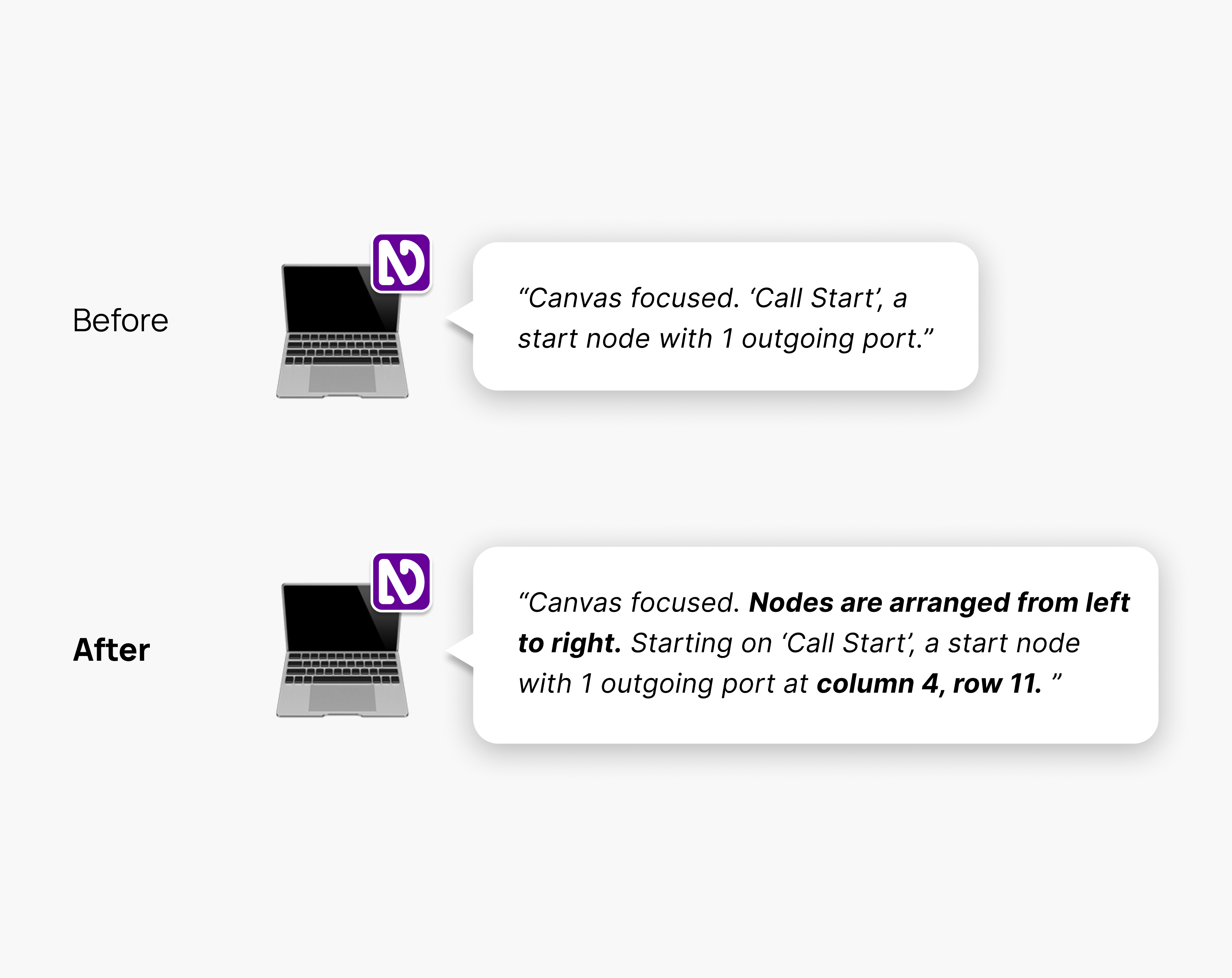
Screen-reader readouts were either too short or too long.
I picked up on when the participant felt that there was too much or too little information and adjusted readouts accordingly.
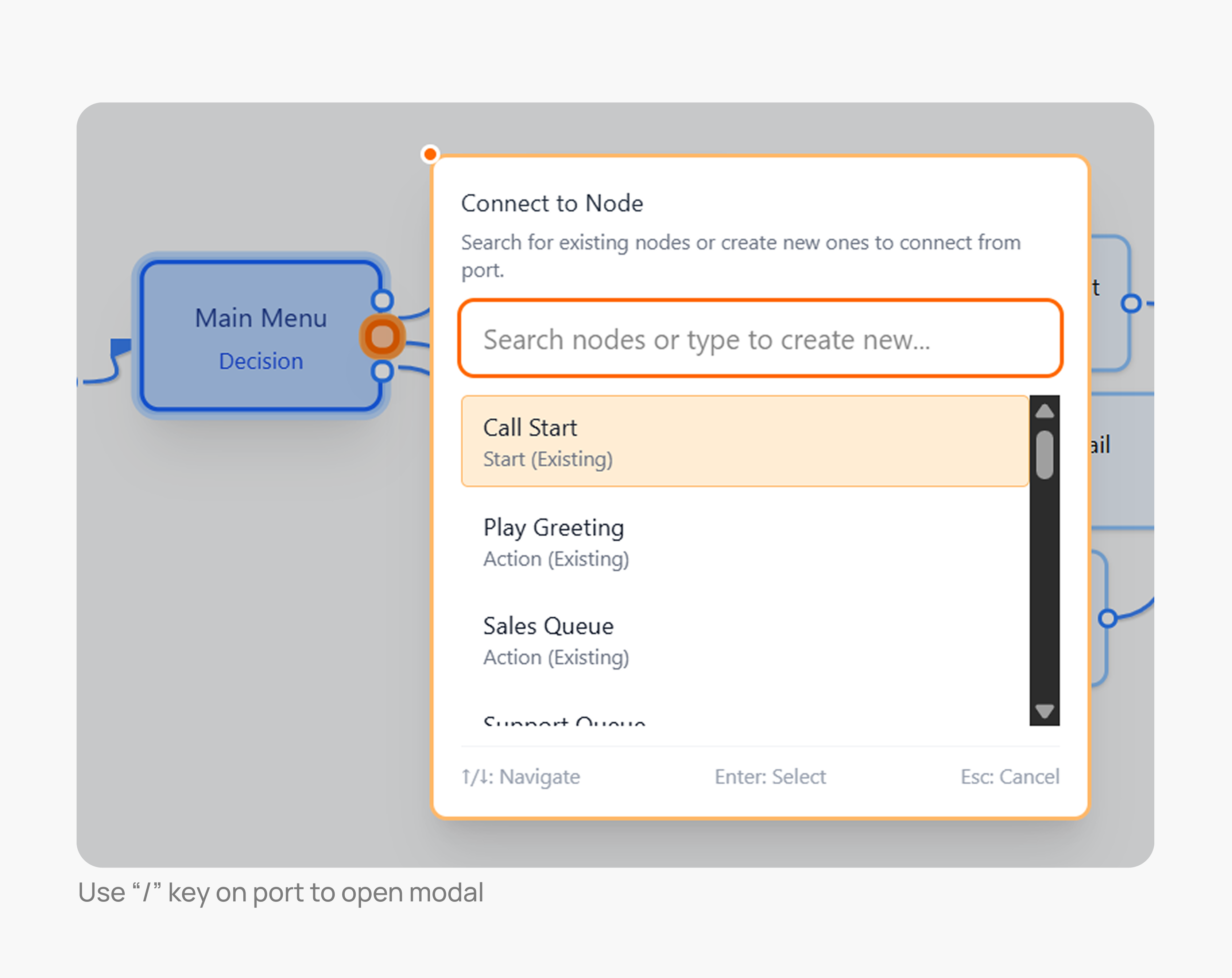
Navigating various menus was a hassle.
The participant suggested a search modal that allows the user to quick search up and connect a new or existing node.
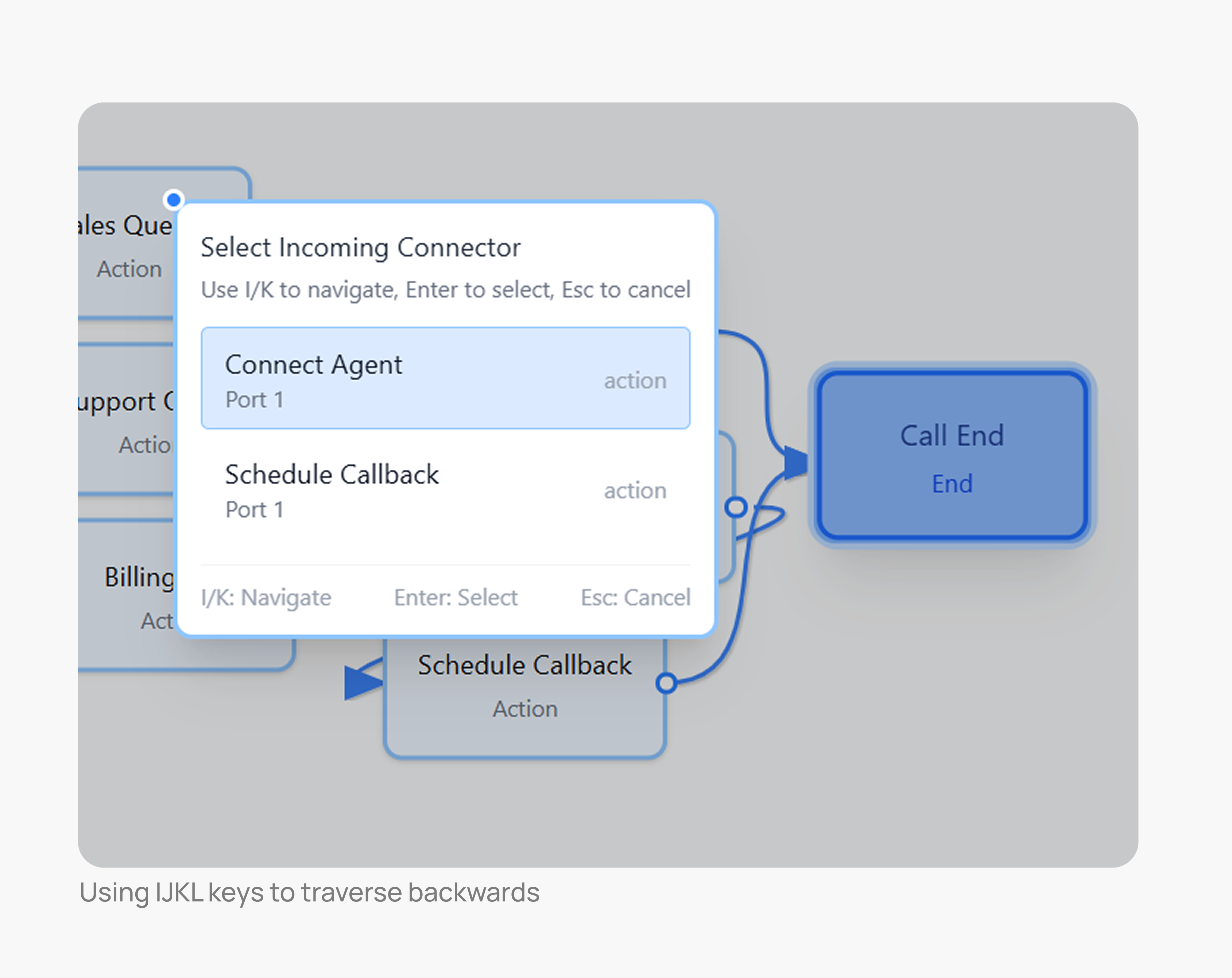
When traversing a flow backwards, multiple nodes can point to the same node. In response, I included a modal that allows the user to choose which node they intend to go back to.
FINAL DESIGN
Traverse Flow
Arrow keys
Traverse spatially using arrow keys.
IJKL Keys
Traverse connections between nodes with IJKL keys.
Connect & Add Nodes
Node Palette
Add nodes via existing node palette by following the tab order.
Quick search modal
Hit “/” key while on the port of a node to quickly connect a new or existing node.
Move nodes
Hit space while on a node to enter "move mode", then use arrow keys to move.
TAKEAWAYS
01.
Design is heavy
Besides craft, designers need to consider the weight of the decisions they make.
Working in a problem space as weighty as this one reaffirmed the importance of design in shaping our relationship with technology and with one another.
02.
Every project follows its own path
In school, we're taught a step-by-step process that isn't easily replicated in the real world—sometimes the design process looks like moving along before you feel "ready".
This project taught me to view my design education as a flexible toolkit as opposed to an unforgiving rulebook.